Do you experience a long wait when opening attachments from within Outlook? And the same file opens in a snap when you save the attachment first on your hard disk, launch the program and then open the file from within the program?
If you answered yes to all questions above, you probable have a DDE issue. DDE (short for Dynamic Data Exchange) allows applications to communicate with one another. For example, when you double-click a document in Windows Explorer, and the associated application is already running, Explorer sends a DDE message to the application, with instructions to open the document on its own, rather than launching another copy of the application. Sounds neat, no?
Well, on my machine, DDE has the tendency to get corrupted… or at least confused. I’m not sure why, but when that happens, it does cause significant delays in opening documents. Not only when launching it from Outlook, also when double-clicking a file in Windows Explorer.
The solution? Disable DDE for those file types that you have trouble with. Like Word, Excel and PowerPoint documents. This is the process:
- Start > Control Panel > Folder Options
- In the File Types tab, select the file extension you want to change (e.g. .doc for Word documents)
- Click the Advanced button
- Select the Open action, click Edit. You will get a dialog box like this:
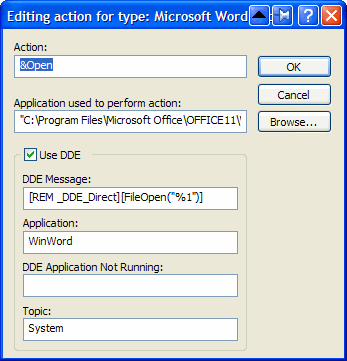
- Uncheck Use DDE
- In the field Application used to perform action, you will see something similar to
“C:\Program Files\Microsoft Office\OFFICE11\WINWORD.EXE” /n /dde
Remove everything after the application (in this case /n /dde) and add “%1“. (Ensure you put %1 between double quotes (“), otherwise this might not work if the folder and/or filename of the document contains spaces).
The field should now contain
“C:\Program Files\Microsoft Office\OFFICE11\WINWORD.EXE” “%1” - Click OK, OK, Close

That’s it. One final note: the DDE functionality gets restored when you re-install the application. But that will probably also fix the DDE issue itself, and if not, simply follow the instructions above again.
Interesting. I have found much about the DDE work-around, but I’m still looking for a REAL repair method. The situation on one of my PC’s has been similar. When a web link is clicked in Thunderbird… a document is double-clicked to open in Word or Excel… a folder is clicked to open from StarDock’s ObjectDock… 10-20 seconds pass before the action occurs. Argh!
I have also noticed after doing this to several of our XP pro PCs, Microsoft has un-done my changes and has put DDE back in. Interestingly enough, the Vista boxes already are using “%1” method instead of DDE.
Just thought I would mention seems like this change is temporary at best.
Well, it’s a good solution if only a single document type is giving a problem. I have the slow launch with EVERY file extension from any place I double-click to launch. RTF, DOC, XLS, PDF…even a link in an email. And slow? Try 60-120 seconds to launch.
Running Office 2003 on XP SP3 one of our PC’s had real problems opening attachments and shortcuts. This fix worked really well. Will probably re-install Office when we have a chance.
Thanks for the good work.
This has been a nuisance for awhile, and I’ve tried several things. I actually think this works. Thanks.
@John
I haven’t had slowness with all apps but if you do you need to change the settings for each file type. Also check your Outlook ad-ins and disable 3rd party ad-ins that aren’t needed.
Here is a script to change the registry. Just copy it and save it in notepad as a .bat file and then double click the .bat file to make the registry changes automatically.
This script will make changes for xls, xlsx, doc, docx, ppt, pptx, rtf, and pdf. Make sure to backup your registry prior to running for just in case.
# DOC
[HKEY_CLASSES_ROOT\Word.Document.8\shell\Open\command]
@=”\”C:\\Program Files\\Microsoft Office\\Office12\\WINWORD.EXE\” \”%1\””
# docx
[HKEY_CLASSES_ROOT\Word.Document.12\shell\Open\command]
@=”\”C:\\Program Files\\Microsoft Office\\Office12\\WINWORD.EXE\” \”%1\””
#xls
[HKEY_CLASSES_ROOT\Excel.Sheet.8\shell\Open\command]
@=”\”C:\\Program Files\\Microsoft Office\\Office12\\EXCEL.EXE\” /e \”%1\””
# xlsx
[HKEY_CLASSES_ROOT\Excel.Sheet.12\shell\Open\command]
@=”\”C:\\Program Files\\Microsoft Office\\Office12\\EXCEL.EXE\” /e \”%1\””
[-HKEY_CLASSES_ROOT\Excel.Sheet.12\shell\Open\ddeexec]
#ppt
[HKEY_CLASSES_ROOT\PowerPoint.Addin.8\shell\Open\command]
@=”\”C:\\Program Files\\Microsoft Office\\Office12\\POWERPNT.EXE\” \”%1\””
#pptx
[HKEY_CLASSES_ROOT\PowerPoint.Addin.12\shell\Open\command]
@=”\”C:\\Program Files\\Microsoft Office\\Office12\\POWERPNT.EXE\” \”%1\””
#rtf
[HKEY_CLASSES_ROOT\Word.RTF.8\shell\Open\command]
@=”\”C:\\Program Files\\Microsoft Office\\Office12\\WINWORD.EXE\” %1″
[-HKEY_CLASSES_ROOT\Word.RTF.8\shell\Open\ddeexec]
#pdf
[HKEY_CLASSES_ROOT\AcroExch.Document\shell\open\command]
@=”\”C:\\Program Files\\Adobe\\Acrobat 9.0\\Acrobat\\Acrobat.exe\” \”%1\
[-HKEY_CLASSES_ROOT\AcroExch.Document\shell\open\ddeexec]
How do you do this in vista? File types does not exist…
Been looking for a fix for ages. Thanks for this.
Another case-by-case “workaround” I had been using (for info) was to open a new explorer window when it hangs.
e.g.
1. In an email, I open an attached DOC file.
2. Hang starts — could last 30 seconds or more.
3. Start > Run > C: to open new Explorer window.
4. BANG – Word springs into life with new DOC loaded.
Oddness. Would also like a “proper” fix but the suggestion is great. Thanks.
Thank you!!
Hi!
This fixed the problem for me but for short time. Its back after some time and new documents are taking more time :(..
Sorry the file opens fine but if i create a new document and try to open that it will take much longer time.
Any suggestion how to fix my problem?
Sorry, but this start make the grinding noise all over again now pc do not shut down unless turn it off and even then there is still alway the grinding noise. Many user complain of this. Any idea?
Hi,
I just wanted to let you know what happened to me.
I was aldo experiencing a huge delay when opening links from outlook to my browsers and I found the problem was the AntiPhishing addons form my AV software.
I just disabled the toolbar and my firefox was again running wonderfully.
So check if that is causing your problems
Hope it helps.
Hi,
I’m having issues opening attachments in SharePoint 3.0 “2007”. My helpdesk system receives emails to a list and are then assigned. However, the staff has to wait sometimes minutes before the attachment is opened. What can I do?
Fixes the problem but changes are completely undone the next time I boot up. Any suggestion on how to make permanent?
Hey Guys,
I found Outlook “detect and repair” resolved this issue without changing every file type in folder options. As it is only an issue with Outlook itself, I wouldn’t recommend changing DDE settings as it could mess up other software (especially in an enterprise environment). To perform a detect and repair go to:
(Outlook 2003) open outlook > Help > “Detect and repair”
(Outlook 2007) Start \ Programs \ Microsoft Office \ Microsoft Office Tools \ Microsoft Office Diagnostics
It will run and should fix these issues.
Cheers,
Noobzarrr!
Hey,
it’s really strange: about 4 weeks ago I used these ideas described above – and they worked nicely.
Now I encounter the same problems again – and the trick does not work again. I tried “detect and repair” – to no avail.
Neither firefox nor iexplore are of any difference . . .
???????
@noobzarrr! – Thanks! That found my 1 error and the error was apparently attachment related. That got it.
Hi Folks,
Like you, I have tried every fix out there without success. Can’t open or preview attachments without a 2 minute wait. Can’t save them to the desktop without a 2 minute wait. Can’t attach new attachments to emails I am sending either. This is for Outlook 2010 on Windows 7
Solution! My new pc has drive letters from C to K (for all its internal disks and devices) but our company automatically maps the “I” drive to a shared folder, via a logon script. Presumably every interaction was trying in vain to connect this drive, failing, and then eventually giving up before showing me my attachment.
Anyway, remapping the drive to anything other than “I” fixed the problem as soon as I rebooted. To try this, go to Computer Management (right-click Computer and choose Manage). Click on Disk Management, right-click on the drive you want to change, and then choose Change Drive Letter And Paths…
Hope this helps someone else out there.
I noticed Google Toolbar for IE9 caused this exact problem. Uninstalled it and “bang” all attachments open lickidy split now.
Brilliant! Saved me a call to the beleaguered IT staff. Thank you!
Thank, my caller was about to give up when we found this fix.
Thanks so much. Your fix works like a charm.
We had the exact same issue. Very slow opening of attached documents in Outlook (30-200 Sek.) and normal load if attachment was saved to Desktop first.
In our case the problem was in the Windows User Profile – some of the Registry Entries in Shell Folders and User Shell folders pointed to a UNC Path that did not exist anymore. Once fixed the problem disappeared.
//Lund
for outlook 2010
open outlook
Add-Ins
in the bottom
com Add-ins press Go
find any anty virus remove the click
OK
thats it
What you will want to do to start with is clear out the Outlook Secure Temp folder. The easiest way to do this is the following steps:
1. Open a PDF attachment from an email
2. Go to File | Properties
3. Go to the Description tab and Click on the Link for File Location
4. Close the PDF
5. In the folder that was opened up, press Ctrl + A to select everything
6. Press Shift + Delete to delete everything from the folder
7. Reboot the computer
Lund – THANKS!! This solved our problem of super slow opening of attachments in Outlook as well. For us, the “Personal” key (found in both Shell Folders & User Shell Folders) pointed to incorrect URLs that no longer existed.
More precisely these keys can be found in the Registry at: HKEY_CURRENT_USER – Software – Microsoft – Windows – Current Version – Explorer, then check in the Shell Folders, and the User Shell Folders. We had previously tried all the other fixes, turned off antivirus, removing / un-checking all plug-ins, in Outlook, etc. One test that I used to know it was an “Outlook” and Internet Explorer problem, and not a network problem – I was able to instantly open Excel attachments using a webmail “client” thru Chrome. We had several users with this issue after using Group Policy to map drives and re-direct personal folders.
Lund – thank you also.
Frank – thanks for letting me know where to find the keys.
We had moved the redirected folders to a new server YEARS ago, this particular problem appeared for the MD of the company this week after being setup on a new PC I promised him would be the fastest thing he’d ever used. He thought I had sold him a kipper.
Cheers chaps!