Kris’s Box

Some random thoughts of a Training Professional

Posts Tagged ‘Microsoft Office’

Fixing slow loading of attachments from Outlook

Do you experience a long wait when opening attachments from within Outlook? And the same file opens in a snap when you save the attachment first on your hard disk, launch the program and then open the file from within the program?

If you answered yes to all questions above, you probable have a DDE issue. DDE (short for Dynamic Data Exchange) allows applications to communicate with one another. For example, when you double-click a document in Windows Explorer, and the associated application is already running, Explorer sends a DDE message to the application, with instructions to open the document on its own, rather than launching another copy of the application. Sounds neat, no?

Well, on my machine, DDE has the tendency to get corrupted… or at least confused. I’m not sure why, but when that happens, it does cause significant delays in opening documents. Not only when launching it from Outlook, also when double-clicking a file in Windows Explorer.

The solution? Disable DDE for those file types that you have trouble with. Like Word, Excel and PowerPoint documents. This is the process:

  1. Start > Control Panel > Folder Options
  2. In the File Types tab, select the file extension you want to change (e.g. .doc for Word documents)
  3. Click the Advanced button
  4. Select the Open action, click Edit. You will get a dialog box like this:
  5. Uncheck Use DDE
  6. In the field Application used to perform action, you will see something similar to
    “C:\Program Files\Microsoft Office\OFFICE11\WINWORD.EXE” /n /dde
    Remove everything after the application (in this case /n /dde) and add %1. (Ensure you put %1 between double quotes (“), otherwise this might not work if the folder and/or filename of the document contains spaces).
    The field should now contain
    “C:\Program Files\Microsoft Office\OFFICE11\WINWORD.EXE” “%1″
  7. Click OK, OK, Close

That’s it. One final note: the DDE functionality gets restored when you re-install the application. But that will probably also fix the DDE issue itself, and if not, simply follow the instructions above again.

Reason #4 why I like Office 2007: the new file format

The new file format that Office 2007 uses is an XML-based file format, which is stored on the hard disk in a compressed format. A standard ZIP-compression is used, which means that you can open Office 2007 files in a zip-compatible application.

This opens a lot of possibilities, but what I really like about it is that you can easily extract images or other embedded documents out of Word, Excel or PowerPoint files.
Better yet, this (finally!) gives me an easy way to find out why a PowerPoint presentation has a huge file size, even though I used “Compress Pictures…” before I saved.

I could put this into practice today: a colleague asked for my help because he had a PowerPoint presentation with about 30 slides, some of which contained pictures, and the file size was 11MB. Too large to send as an e-mail attachment in our organization.

I first looked at the obvious things: no master slides that were not used, no pictures that were scaled down to 25% or less, all pictures compressed and cropped… nothing that would explain the 11MB.
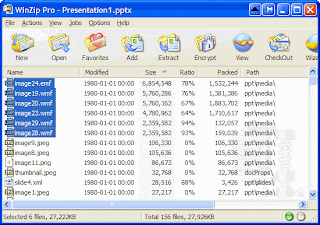
So I opened the file in PowerPoint 2007, saved it as an .pptx-file, opened that with WinZip and sorted the list on file size. The result? The presentation contained 6 images in .wmf-format, which apparently take a lot of space.

I could not have seen that in PowerPoint 2003: the images themselves were less than 300×300 pixels and were scaled at 100%, so everything looked OK.

After replacing the pictures with a .jpg-version, the PowerPoint presentation shrank to a mere 3 MB!
Reason #3 why I like Office 2007: Conditional Formatting Power in Excel

I teach about Office 2003 regularly, and whenever I demonstrate the Conditional Formatting options in Excel 2003, one of the first questions I get is “Great, but can you have more than 3 conditions?”. I have to disappoint people then, because the limit is 3. Until Excel 2007 arrived that is. In the new Excel 2007, you may have as many conditional formats as you like.

Better yet, a powerful series of commonly used Conditional Formatting rules are predefined, so visualizing information using color really is a matter of just a few clicks. The Conditional Formatting button also is prominently present on the Home tab of the Ribbon, an indication that the Excel team understands its power for users. I particularly like the Data Bars and Color Scales options:

  • Data Bars display a color bar across cells to display the relative magnitude of values in a cell range. It makes is very easy to get a visual representation of your data:
  • Color Scales let you color cells using a color gradient. So you really can show subtle differences between numbers in different colors:

There are other options as well. I was excited about Icons Sets at first: it looked like the icons would allow for a nice indication of whether a value was going up or down:But I’m not so sure this option is as valuable as it looks like at first sight.
Suppose you have the following data about Sales in the first 5 months of the year:I’d like to use the 4 arrows option to quickly show whether data is going up or down, month by month. However, when I apply that arrow formatting on the range, this is the result:Not quite what I expected. The yellow arrows seems to indicate that February and March are better than January, but in fact, the trend is going down. Looking at the details of this predefined setup, I understand how Excel is using the arrows: They are used to represent a relative value in the whole range of the cells, not compared to the previous or next cell. I think this is confusing. There should be an easy way to use arrows indicating whether a value goes up, or down throughout a range, but I haven’t been able to figure out how to do that. If you do, please let me know.

Having said that, the Conditional Formatting improvements in Excel 2007 are huge! What I covered here is in fact only the tip of the iceberg.

Switch to our mobile site