Posts Tagged ‘Outlook’
Send E-mail with 1 minute delay in Outlook
How often did you sent an email, only to realize seconds after clicking the Send-button that you forgot to add an attachment? How many times did you franticly click the “Sent Items” folder, because you thought you just sent a nasty or embarrasing message about somebody to that person by accident? Did you ever get complaints because you accidentally clicked “Reply to All” on a message with a large distribution list?
With Outlook Rules, you can avoid this stress. You can set up a rule that delays the sending of a message with 1 minute. That’s enough time to correct any mistakes, but still fast enough for day-to-day communication.
The instructions and screenshots below are for Outlook 2007, but older and newer versions have similar capabilities:
Tools > Rules and Alerts
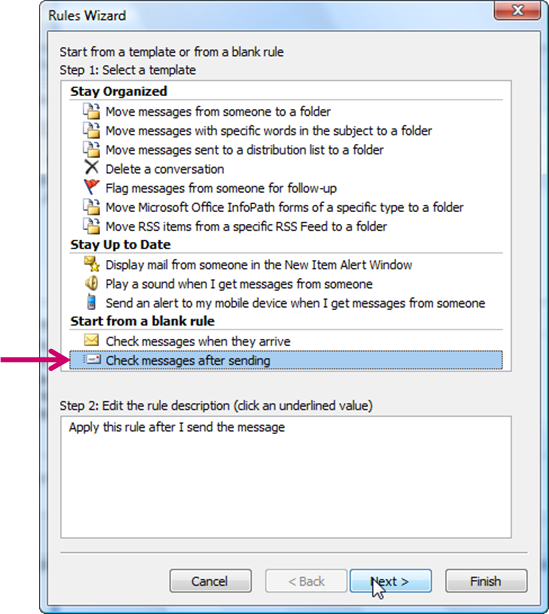
Start from a blank rule > Check messages after sending

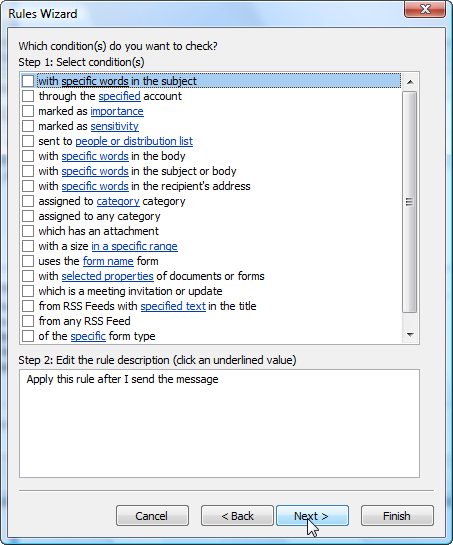
- Do not select any conditions in step 1 (just click
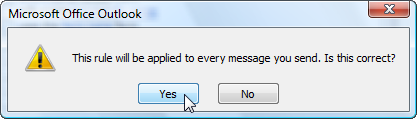
Next), confirm that this rule will be applied to all messages (clickOK)


- Select
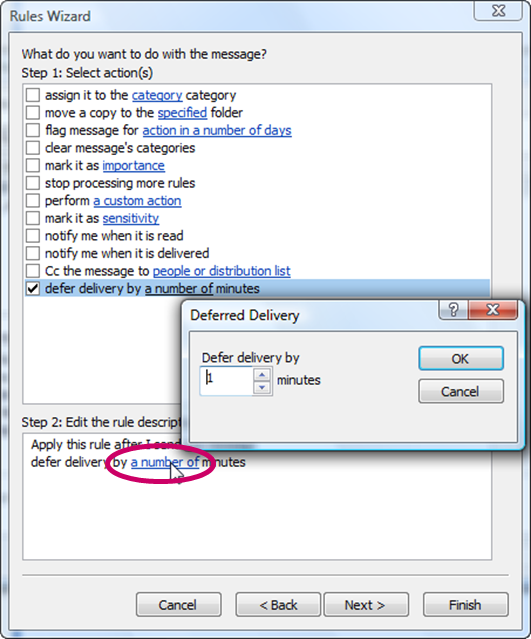
defer delivery by a number of minutesas action, clicka number of, specify1minute, clickOK,Next

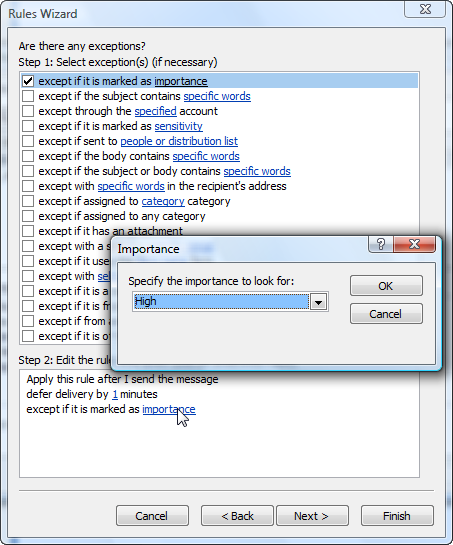
- If you want, you can create an exception for urgent messages, so that those are anyway sent immediately: check
if marked with high importance, clickNext
(Just clickNextif you don’t want any exception)

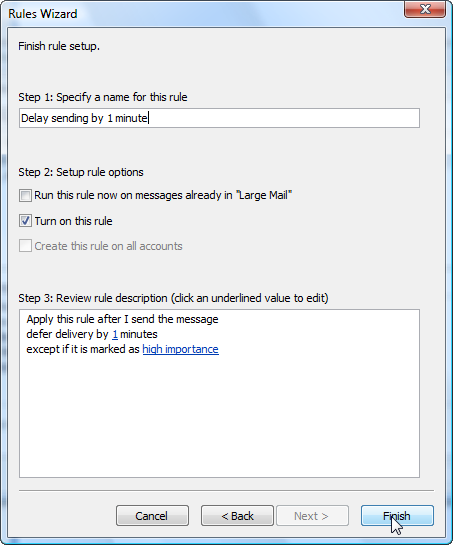
- Give the rule a name, click
Finish
If you are using Outlook in an Exchange environment, you will get a warning that this rule will only be active when Outlook is running. Just click OK. (Outlook Rules in an Exchange environment typically run on the server, so that they are applied even if Outlook is not running on your PC. This is a Rule that only works if Outlook is running)

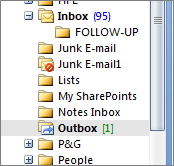
Once configured, Outlook will wait 1 minute with sending your message after you click “Send”. If you want to make changes to the email during that time, double-click the message in the Outbox-folder. After making the changes, make sure you click Send again. The message will be sent out (again with a 1 minute delay).

Notes:
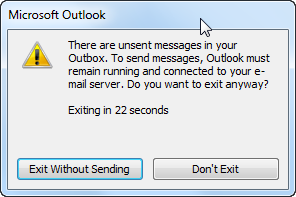
- As Outlook needs to be running for this rule to work, you might get a warning message if you try to close Outlook immediately after sending a message, as there still is a message waiting to be sent:
Make sure to click Don't Exitand wait 1 minute to ensure your message is sent. - If you double-click the message in the Outbox-folder and don’t click the Send-button again, the message will stay in your Outbox and never be sent. Make sure to click the Send-button after making changes. (You can see that the message is ready to be sent as it will show in “Unread” status (i.e. using bold font)
Fixing slow loading of attachments from Outlook
Do you experience a long wait when opening attachments from within Outlook? And the same file opens in a snap when you save the attachment first on your hard disk, launch the program and then open the file from within the program?
If you answered yes to all questions above, you probable have a DDE issue. DDE (short for Dynamic Data Exchange) allows applications to communicate with one another. For example, when you double-click a document in Windows Explorer, and the associated application is already running, Explorer sends a DDE message to the application, with instructions to open the document on its own, rather than launching another copy of the application. Sounds neat, no?
Well, on my machine, DDE has the tendency to get corrupted… or at least confused. I’m not sure why, but when that happens, it does cause significant delays in opening documents. Not only when launching it from Outlook, also when double-clicking a file in Windows Explorer.
The solution? Disable DDE for those file types that you have trouble with. Like Word, Excel and PowerPoint documents. This is the process:
- Start > Control Panel > Folder Options
- In the File Types tab, select the file extension you want to change (e.g. .doc for Word documents)
- Click the Advanced button
- Select the Open action, click Edit. You will get a dialog box like this:
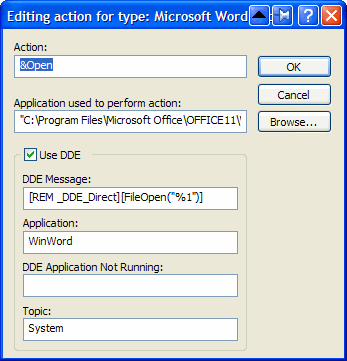
- Uncheck Use DDE
- In the field Application used to perform action, you will see something similar to
“C:\Program Files\Microsoft Office\OFFICE11\WINWORD.EXE” /n /dde
Remove everything after the application (in this case /n /dde) and add “%1“. (Ensure you put %1 between double quotes (“), otherwise this might not work if the folder and/or filename of the document contains spaces).
The field should now contain
“C:\Program Files\Microsoft Office\OFFICE11\WINWORD.EXE” “%1″ - Click OK, OK, Close
That’s it. One final note: the DDE functionality gets restored when you re-install the application. But that will probably also fix the DDE issue itself, and if not, simply follow the instructions above again.
Issue with Global Address Book when using Outlook in Cached Exchange Mode
I have 2 email accounts on 2 different Exchange servers. I created 2 profiles in Outlook and selected to be prompted when Outlook starts, so I can select which account to use. All worked fine for a while, but then I started to get undeliverable reports, because some recipients could not be recognized. It always happened when I was using Exchange server A, and addressing people on Exchange server B.
These recipients were correctly defined in my local Contacts, (as person@B.com) but somehow got “translated” to an Exchange address of a local user (as if person was an employee of company A). Obviously this did not work, as person was not known on Exchange Server A.
As always with these kind of issues, it took several hours to finally figure out what was happening. In both profiles, the email account is defined with the option “Use Cached Exchange Mode”. This is an option that’s available since Outlook 2003, where a copy of the user’s mailbox is stored on the local computer. Check the Office website for more details on Cached Exchange Mode.
http://support.microsoft.com/kb/841273/ finally shed some light: Question 25 of that article asks “Can I download more than one offline address book? Can I use two cached profiles with their own offline address books?”. The answer: “No. Outlook supports only one offline address book per user account on a computer. If you have multiple profiles, only one profile can download the offline address book. If you have to use two cached mode profiles, make sure that one of the profiles does not download the offline address book.”.
So what was happening was that both Global Address Books were being downloaded to the offline address book on my computer. Depending on the status of that download, the offline address book was still filled with people of company B, while I was working on Exchange server A. When sending the message, Outlook incorrectly assumed the person working for company B was a local recipient on the Exchange server A. When the message arrived at the server, it generated an undeliverable error.
I finally decided to disable the automatic download of the offline address book and manually download one address book. That solved the issue.